LingoDeer’s Spaced Repetition System, or SRS, helps you review learned content at suitable intervals so that you can remember it for longer.
Your SRS schedule is updated automatically based on factors such as:
- Your performance in SRS Reviews
- Your current mastery of each item
- The time since you last reviewed an item
- Learning and review activities completed in the Learn tab
- Any manual changes you make in Manage SRS schedule
In this article
- Where can I find SRS?
- Why does my SRS count show 0?
- What are the mastery levels?
- Which practice modes are available?
- What happens during an SRS Review?
- How do I manage my SRS schedule?
- How do I customize my SRS sessions?
- How does Custom Review work?
- SRS Review vs. Custom Review
Where can I find SRS?
Go to the Review tab. You will find Spaced Repetition System at the top of the page under Memorization.
The number shown on the card is the total number of cards currently due for review.
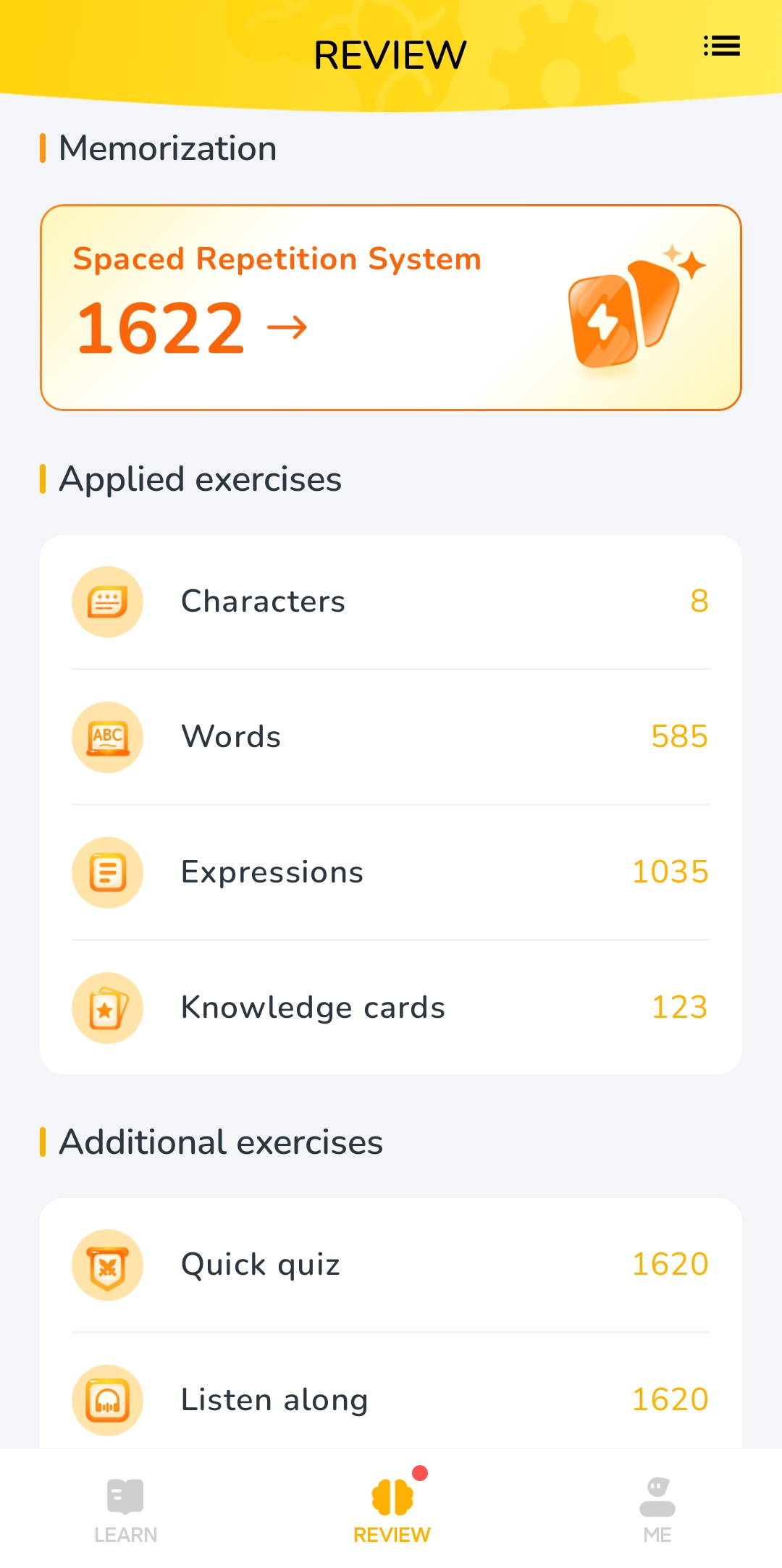
SRS is available on Android, iOS, and the web version of LingoDeer. However, the available practice modes on the web may be more limited.
What do “new” and “in progress” mean?
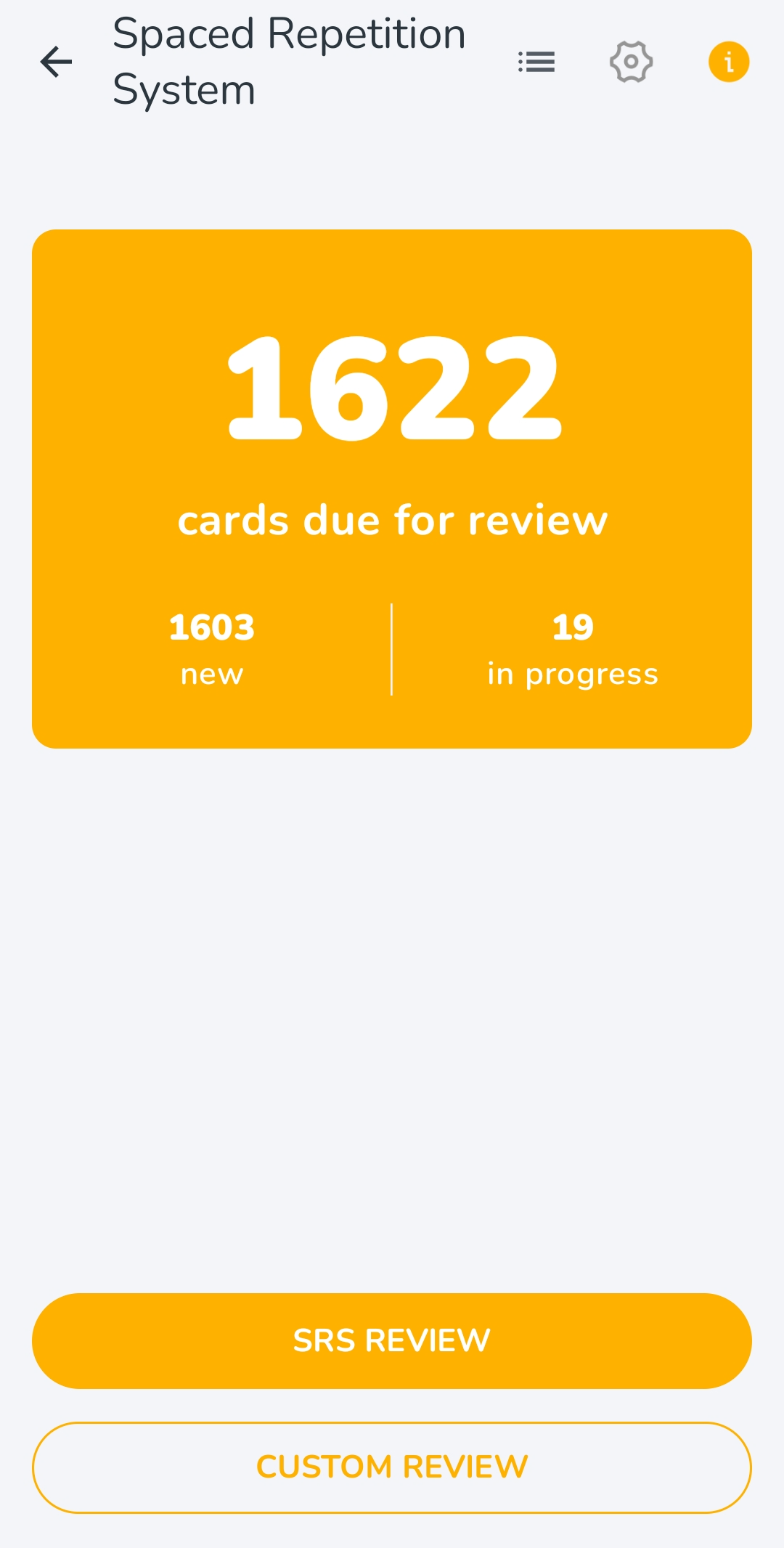
After opening SRS, you will see the total number of cards due for review, divided into:
- New: Cards that you have learned but have not yet reviewed in SRS
- In progress: Cards that you have previously reviewed in SRS and that are now due for another review
Content is automatically added to SRS after you complete the relevant lessons in the main course.
Depending on the language course, SRS may include:
- Characters
- Words
- Expressions
Character cards are only available for languages that use this content type.
Why does my SRS count show 0?
There are two common reasons:
1. You have not started the main course
If your course progress is still at 0, there are no learned items available for review yet. Go to the Learn tab and complete lessons in the main course. The related items will then be added to SRS automatically.
2. You have completed all reviews currently due
If you have already reviewed all cards due for the day, the number may also show 0.
You can still open SRS and:
- Use Custom Review for additional practice
- Manually adjust review dates in Manage SRS schedule
- Continue learning or reviewing content in the Learn tab, which may update the mastery and review schedule of related items
What are the mastery levels?
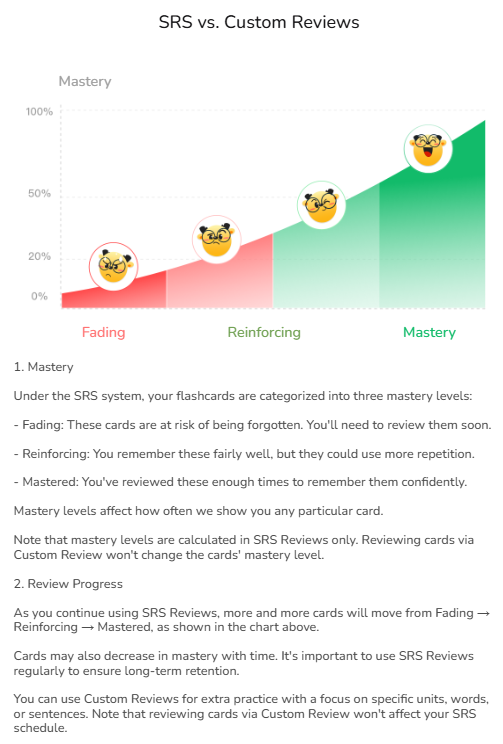
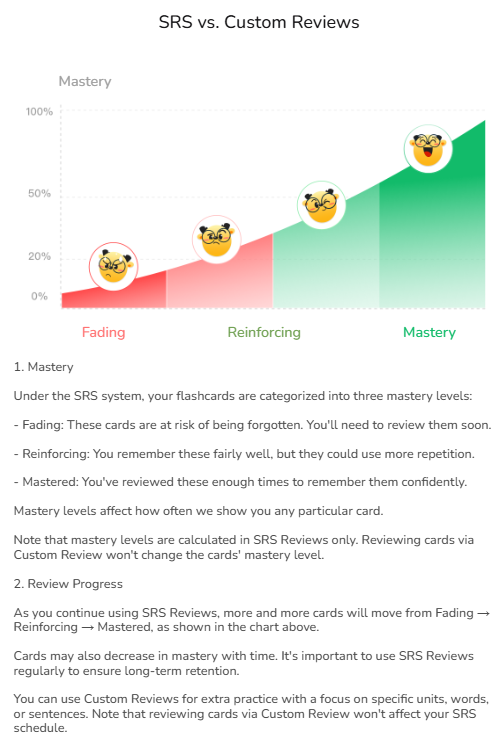
SRS organizes reviewed cards into three mastery levels:
- Fading: These cards are at risk of being forgotten and should be reviewed soon.
- Reinforcing: You remember these cards fairly well, but they still need more repetition.
- Mastered: You have reviewed these cards enough times to remember them confidently.
A card’s mastery may change as you continue learning and reviewing. Mastery may also decrease over time when an item has not been reviewed recently.
These mastery levels help the system determine how often each card should appear in SRS.
Which practice modes are available?
The mobile app provides five SRS practice modes:
- SRS – Flashcards
- SRS – Comprehensive
- SRS – Listening
- SRS – Speaking
- SRS – Spelling
Select the mode you want, then tap Start.
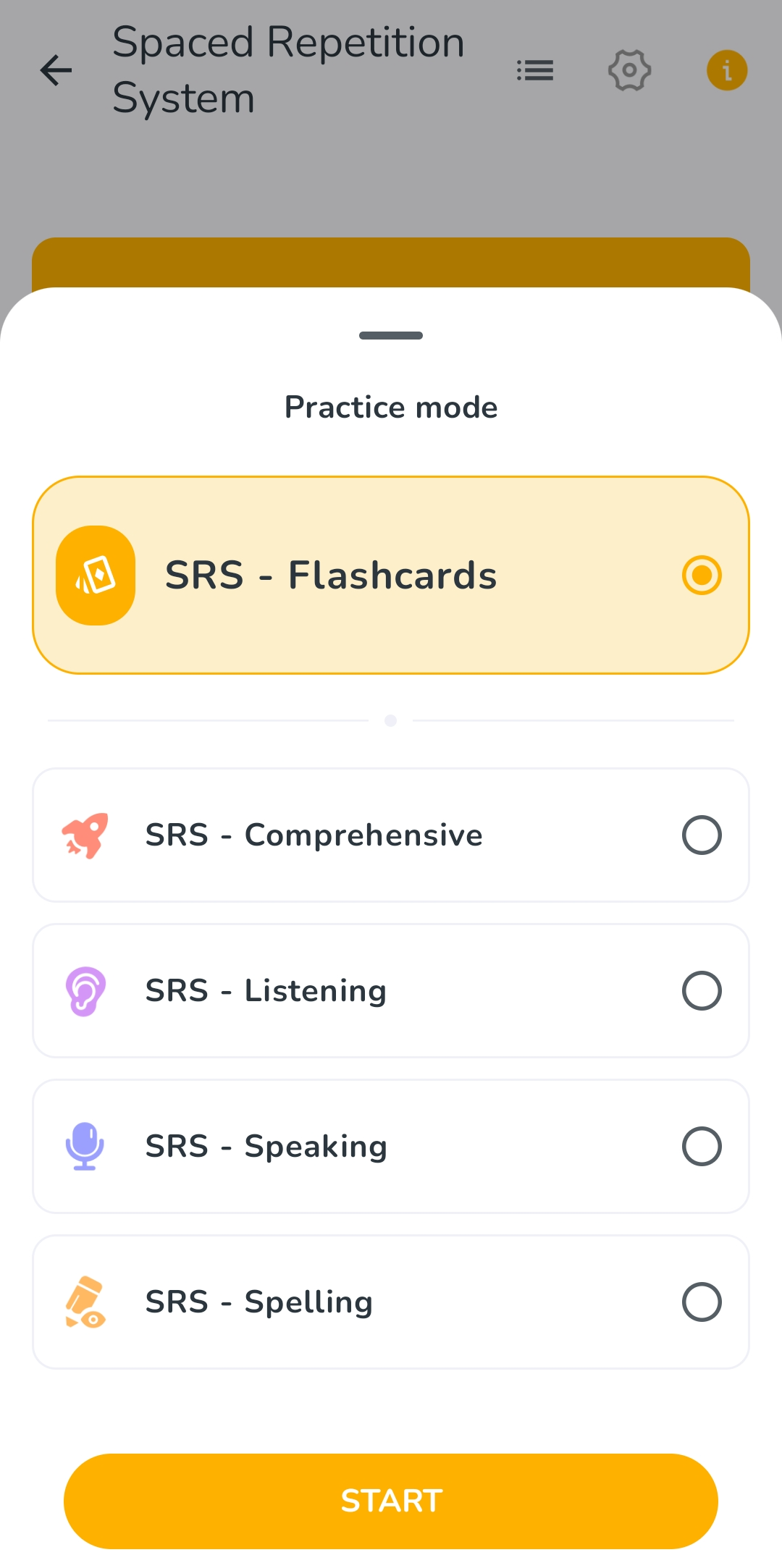
The available modes on the web version may be more limited.
Free and Premium access
Free users can use SRS – Flashcards, but only for content from free course units.
The other SRS practice modes and Premium course content require an active Premium membership.
What happens during an SRS Review?
The examples below use the Chinese course for English speakers. Some content and display options may vary by course.
- Understanding the session counters
At the top of the review screen, you will see three numbers showing your progress through the current session.
For example, 15 → 0 → 0 means that the session starts with 15 cards to work through.
As you review and rate each item, the numbers will update. Items rated with one of the two red options are grouped into the red count, while items rated with one of the two green options move into the green count.
A session is complete when all cards have moved into the green group.
[See the Flashcards example below]
You do not need to complete the entire session at once. If you leave early:
- Results for items you have already reviewed will still be saved.
- Any mastery updates for completed items will still count.
- Items you have not yet completed will remain available for later review.
- SRS – Flashcards
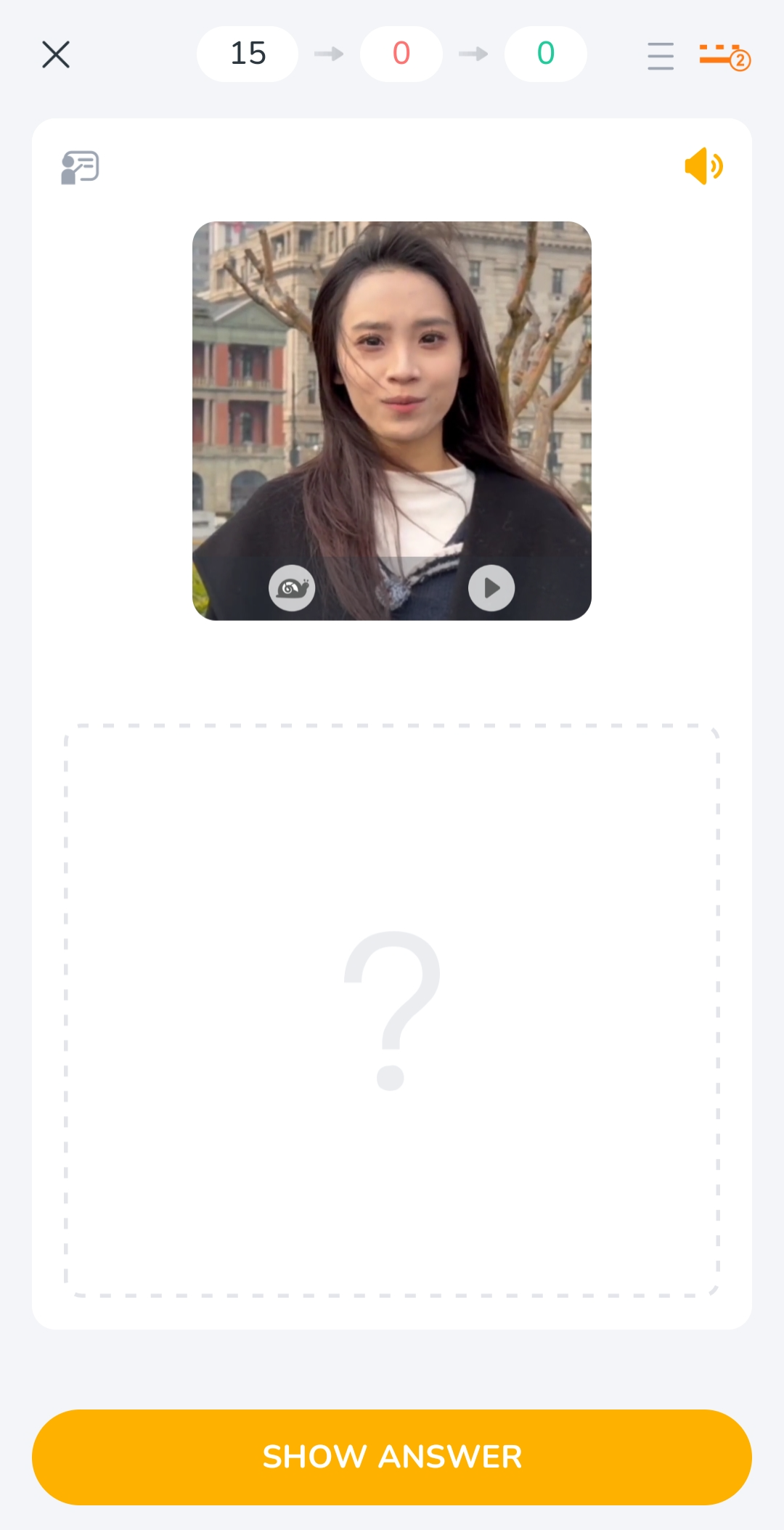
In SRS – Flashcards, you review each item at your own pace.
At first, the answer area is hidden with a question mark so that you have time to recall the item yourself.
When you are ready, either:
- Tap inside the answer area; or
- Tap Show Answer.
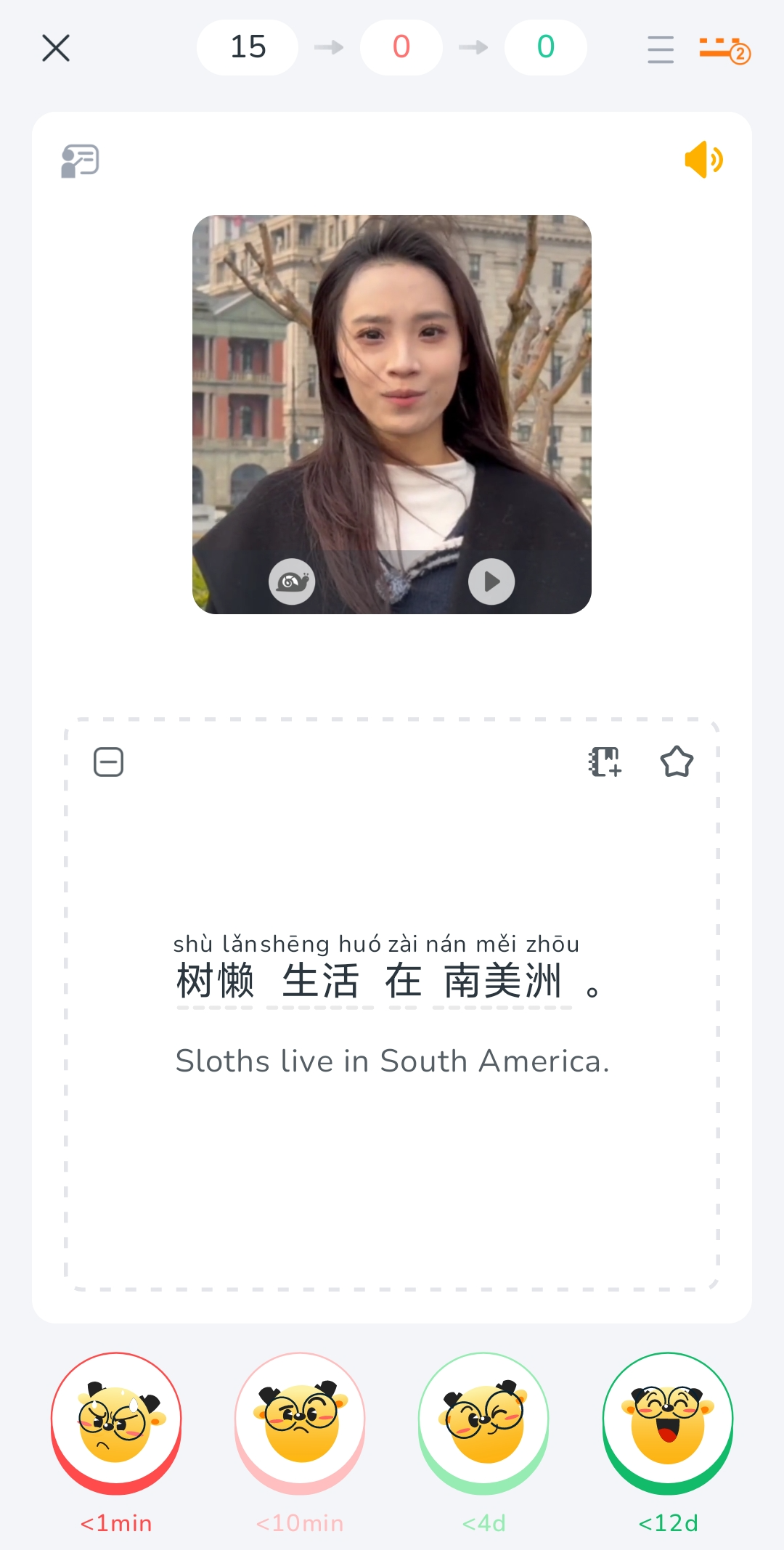
The full item and its translation will then be displayed.
After revealing the answer, use one of the four mastery options at the bottom of the screen to tell SRS how well you remember the item.
 |  |
- The other SRS practice modes
The other four SRS modes are:
- SRS – Comprehensive
- SRS – Listening
- SRS – Speaking
- SRS – Spelling
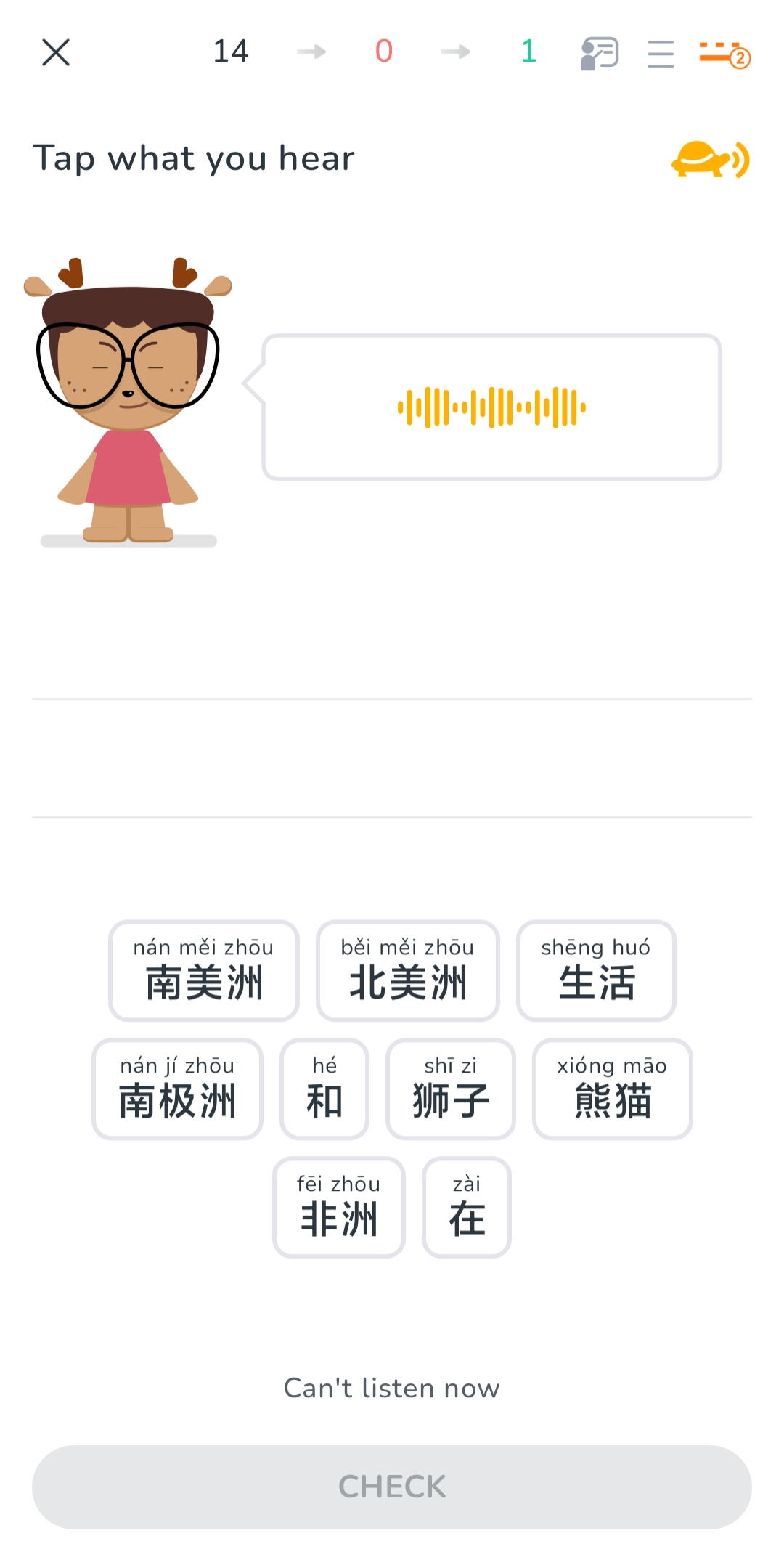
These modes work a little differently from Flashcards. Instead of revealing the answer yourself, you first complete an exercise.
After you submit your answer, LingoDeer will show whether your response was correct or incorrect, along with the correct answer and other relevant feedback.
The same four mastery options will then appear at the bottom of the answer area.
 | 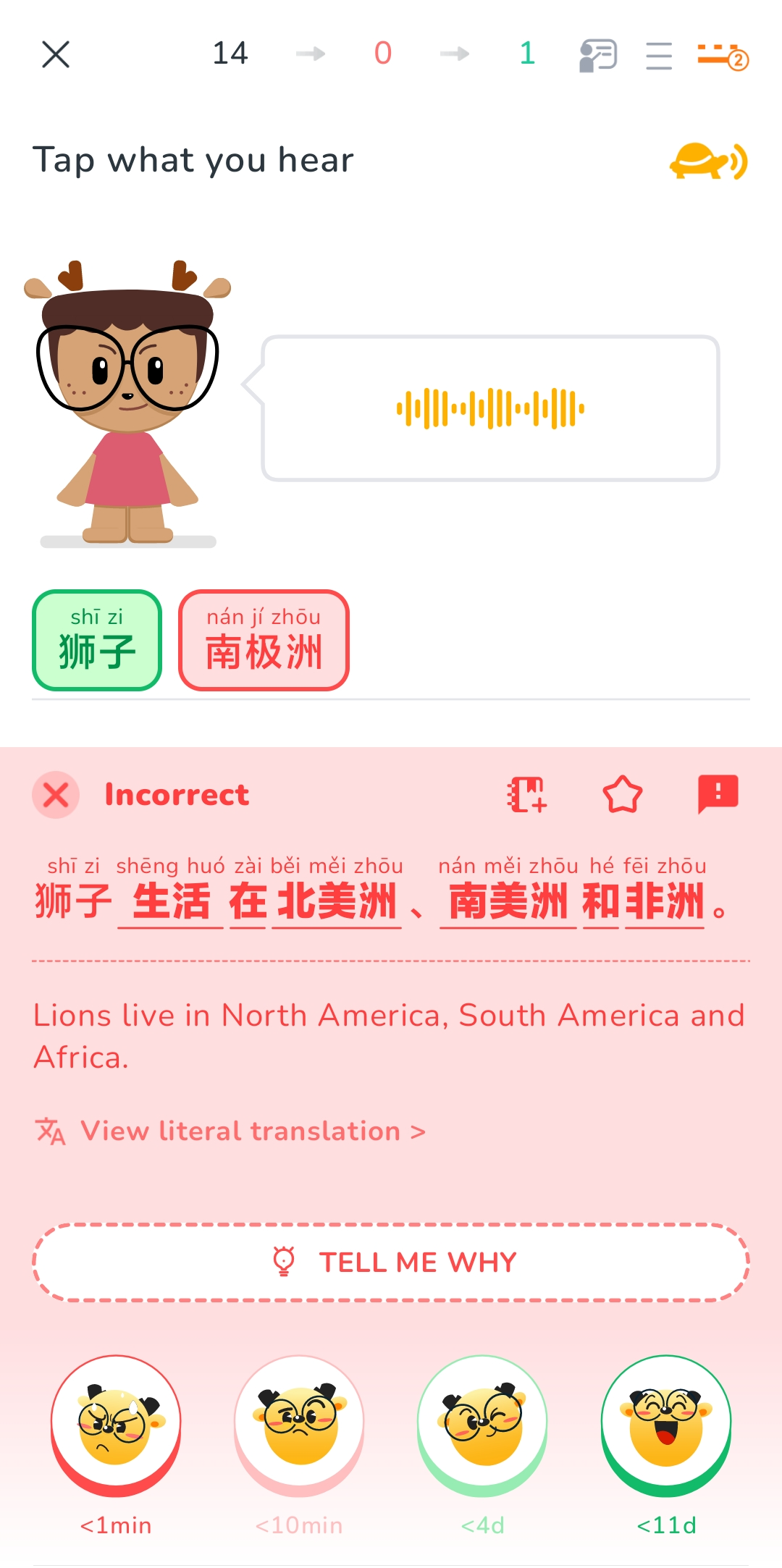 |
Your exercise result does not directly determine the item’s SRS mastery level.
Whether you answered the exercise correctly or incorrectly, you still decide how well you remember the item by selecting one of the four mastery options.
This allows you to rate your actual confidence independently of your result on a single exercise. For example, you may make a small mistake on an item you otherwise know well, or answer correctly even though you were unsure.
- Rating your mastery
After each item, select the option that best reflects how well you remember it.
Each of the four options shows an estimated interval before the item will be reviewed again.
- The two options on the left, shown in red, indicate that the item still needs more immediate reinforcement.
- The two options on the right, shown in green, indicate stronger recall and move the item forward in its SRS schedule.
If you select one of the red options, the item will remain in the current session and may appear again. It will continue to be included until you later rate it with one of the green options.
This is intentional: a red rating means that the item still needs reinforcement before it is moved forward in your review schedule. Seeing it again within the same session gives you another opportunity to recall it after a short interval.
The review intervals shown under the four options are calculated separately for each item and may vary depending on its review history.
If you select an option by mistake, keep your finger on the selected option and swipe upward to undo your selection.
- Tools available during review
Several additional tools are available while reviewing an item.
Learning Tips
Tap the Learning Tips icon to view the Learning Tips for the unit that contains the current item.
Standard audio
Tap the yellow speaker icon to hear the studio-recorded pronunciation.
Hide this item
Tap the hide icon in the answer area to hide the current item. You will be asked to confirm before hiding it. Hidden items will no longer appear in:
- SRS Reviews
- Custom Reviews
- Applied exercises
- Additional exercises
You can restore hidden items later through Manage SRS schedule.
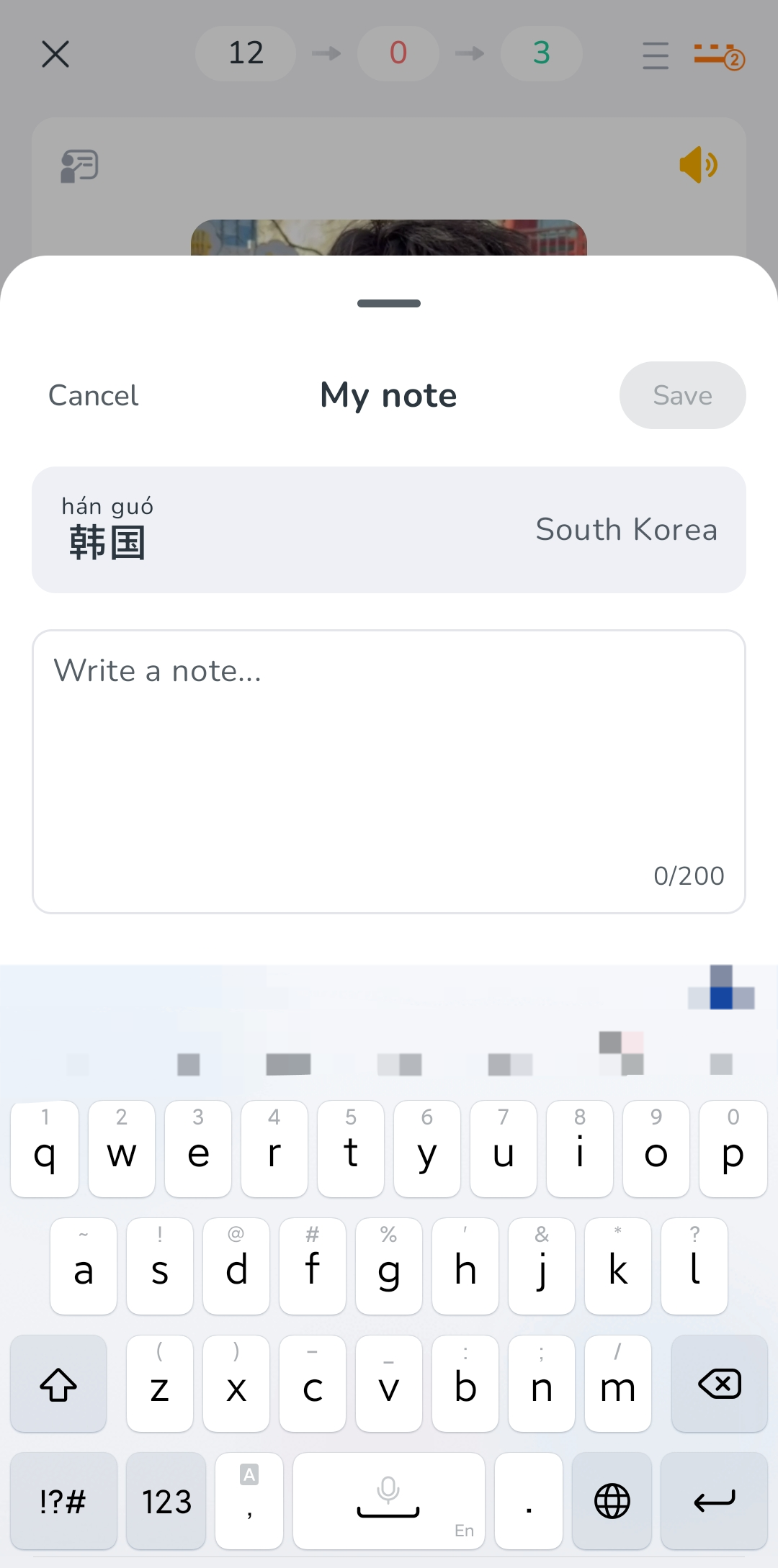
Add a note
Tap the note icon in the answer area to add your own note to the item.
Bookmark an item
Tap the star icon to bookmark the current item. Bookmarked items can be found later under Review > Bookmarked, where you can review them again whenever you like.
- Changing review settings
Tap the menu icon in the upper-right corner of the review screen to open the session settings.
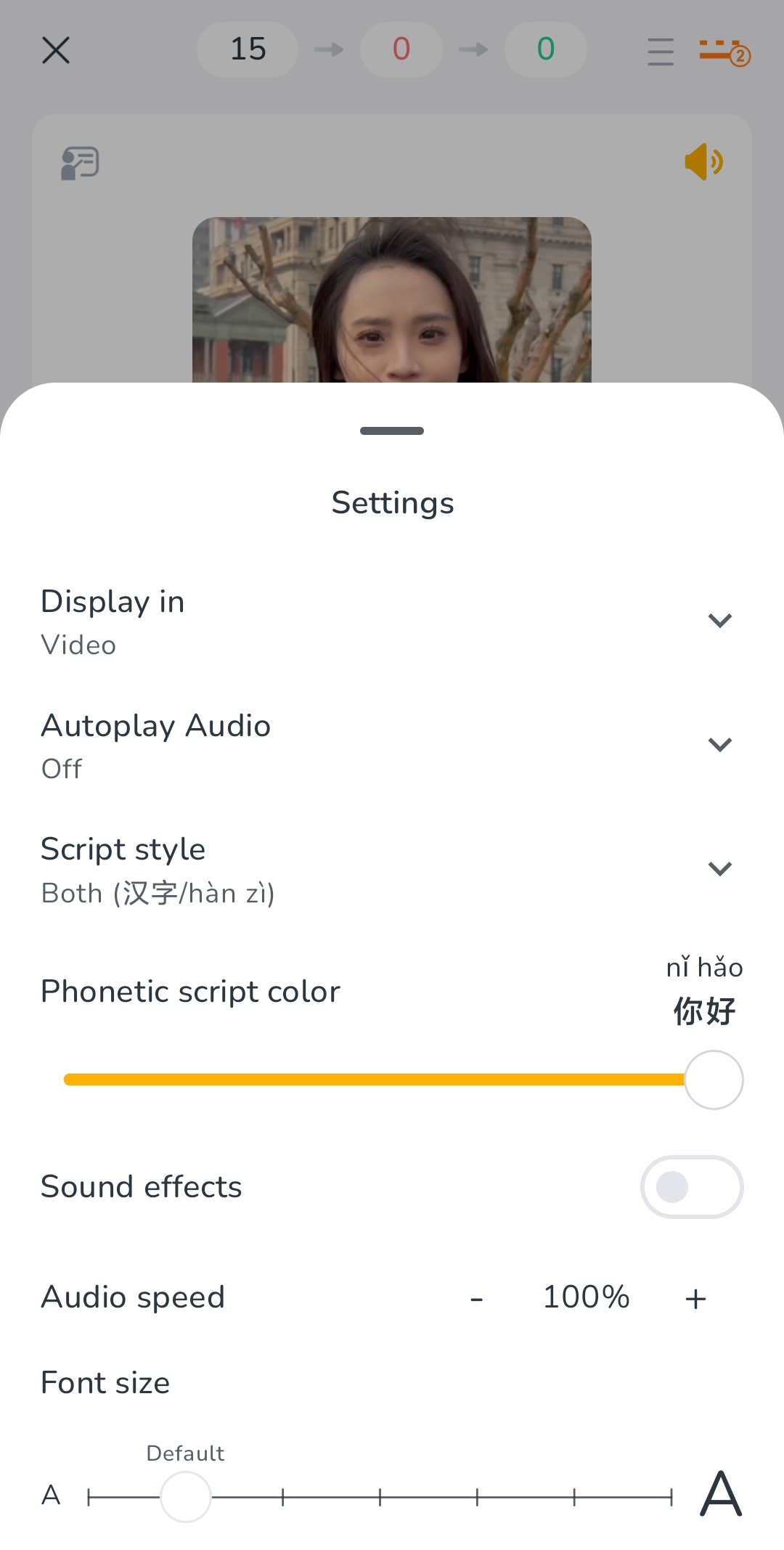
Available settings include:
Display in
For the Chinese course, you can choose:
- Chinese
- Translation
- Audio
- Video
- Mixed
Available display types may vary by course. Video is not currently available for every course.
Autoplay Audio
You can choose:
- Off
- Before answer
- After answer
Script style
For the Chinese course, you can choose:
- Pinyin
- Character
- Both
Available script options vary depending on the language course.
You can also use the shortcut icon next to the settings button to quickly switch the current script display.
Other settings, such as audio speed and font size, are shared with the Learn tab and are explained separately in our learning settings guide.
What happens if I leave an SRS session early?
You do not need to complete an entire session at once.
If you leave a session early:
- Results for cards you have already reviewed will still be saved.
- Any mastery or review updates for completed cards will still count.
- Cards you have not yet reviewed will remain available for a later session.
Your completed work will not be discarded simply because you leave before finishing the session.
How do I manage my SRS schedule?
Tap the Manage SRS schedule icon in the upper-right corner of the SRS page.
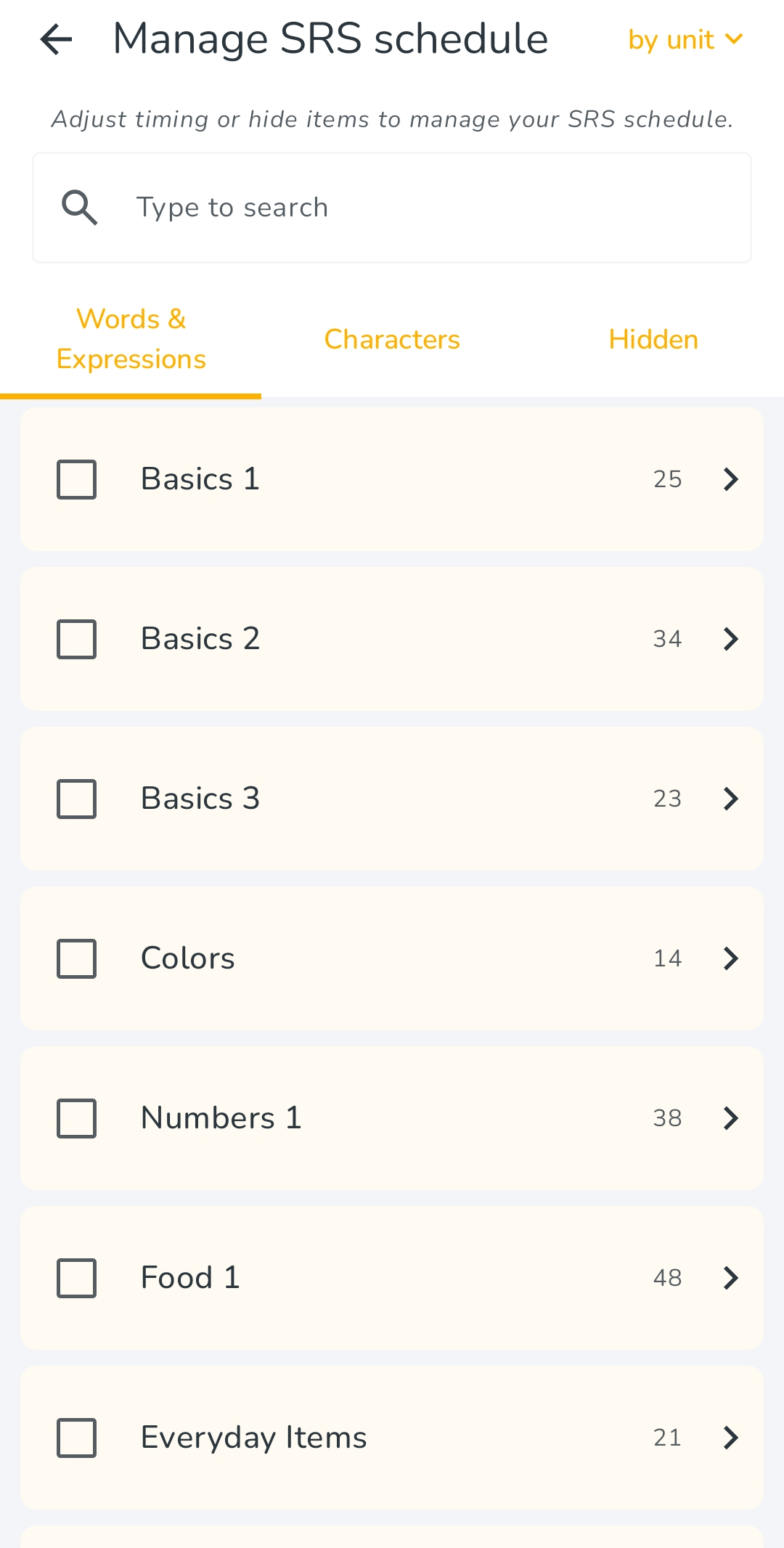
You can view your items:
- By unit
- By time
You can also:
- Search for a specific item
- Adjust the next review date for an individual item
- Adjust items within a unit
- Move an item to today or delay it by a selected number of days
- Hide an item
- Restore an item from the Hidden tab
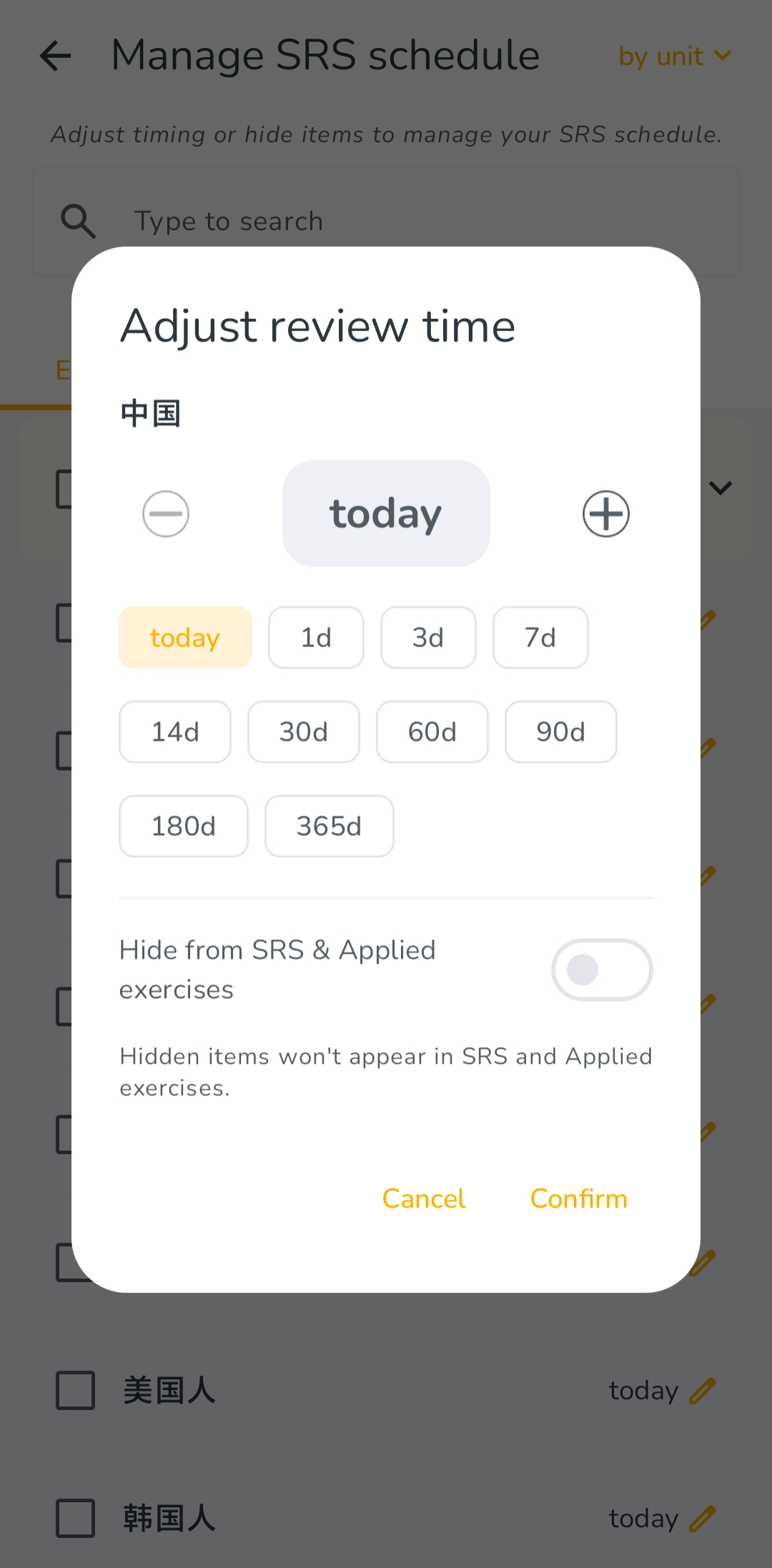
If you hide an item, it will no longer appear in:
- SRS Reviews
- Custom Reviews
- Applied exercises
- Additional exercises
You can restore it later from the Hidden section.
How do I customize my SRS sessions?
- Cards per session
Tap the Cards per session icon in the upper-right corner of the SRS page.
You can choose how many cards you want to review in one session.
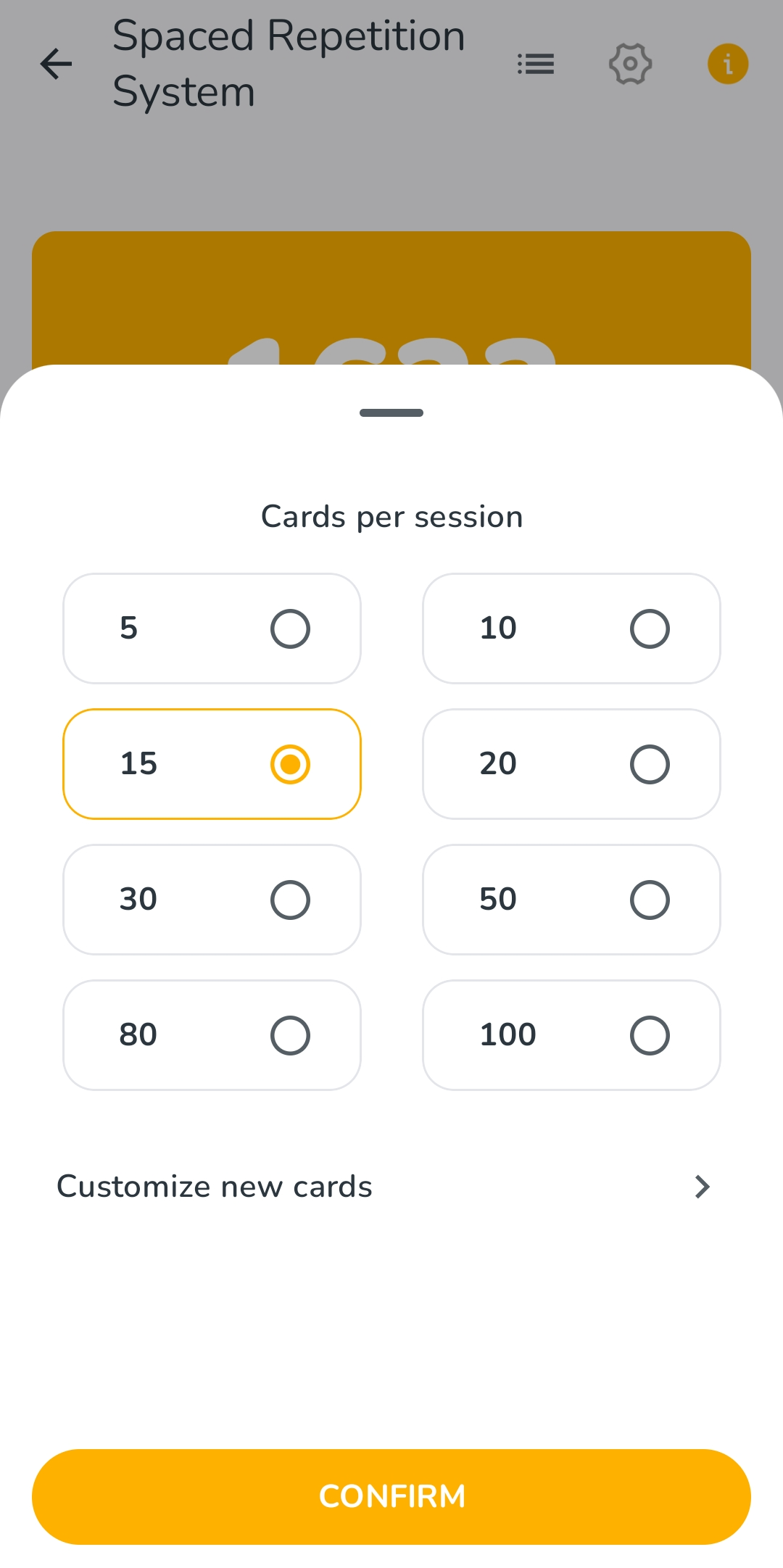
Where possible, a session uses a 1:1 ratio of:
- New cards
- In-progress cards
If there are not enough cards of one type, the remaining places will be filled with cards of the other type.
This setting only controls the number of cards in each session. It does not change the total number of cards due for the day.
- Customize new cards
When new cards are available, tap Cards per session, then select Customize new cards.
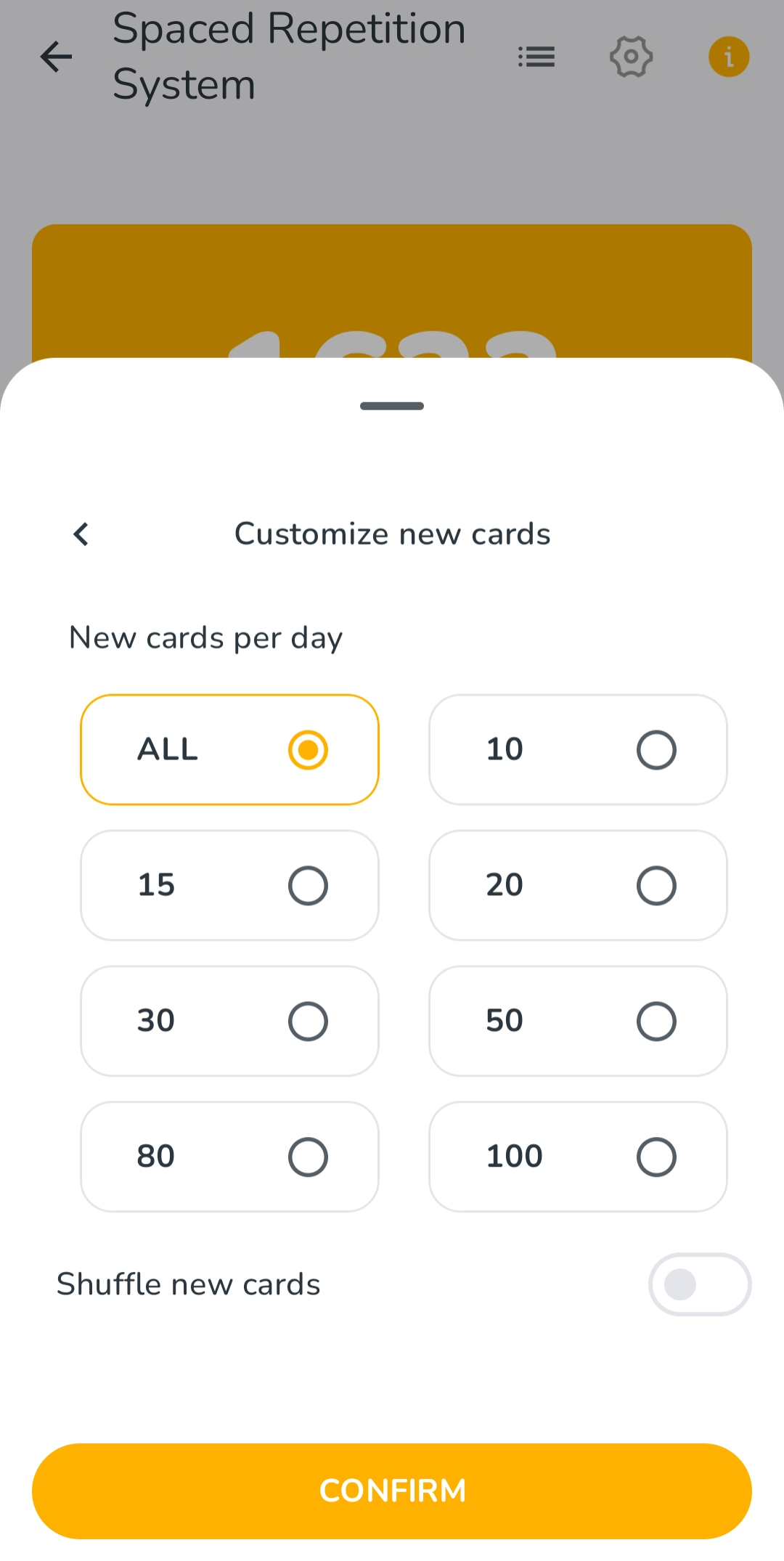
You can choose the maximum number of new cards to introduce each day.
Selecting All makes all available new cards eligible to appear that day. However, the number you actually review will still depend on:
- Your selected number of cards per session
- How many sessions you complete
You can also enable Shuffle new cards to review new cards in a randomized order instead of following their original course order.
If there are no new cards available, the Customize new cards option will be hidden automatically.
How does Custom Review work?
- Using Custom Review
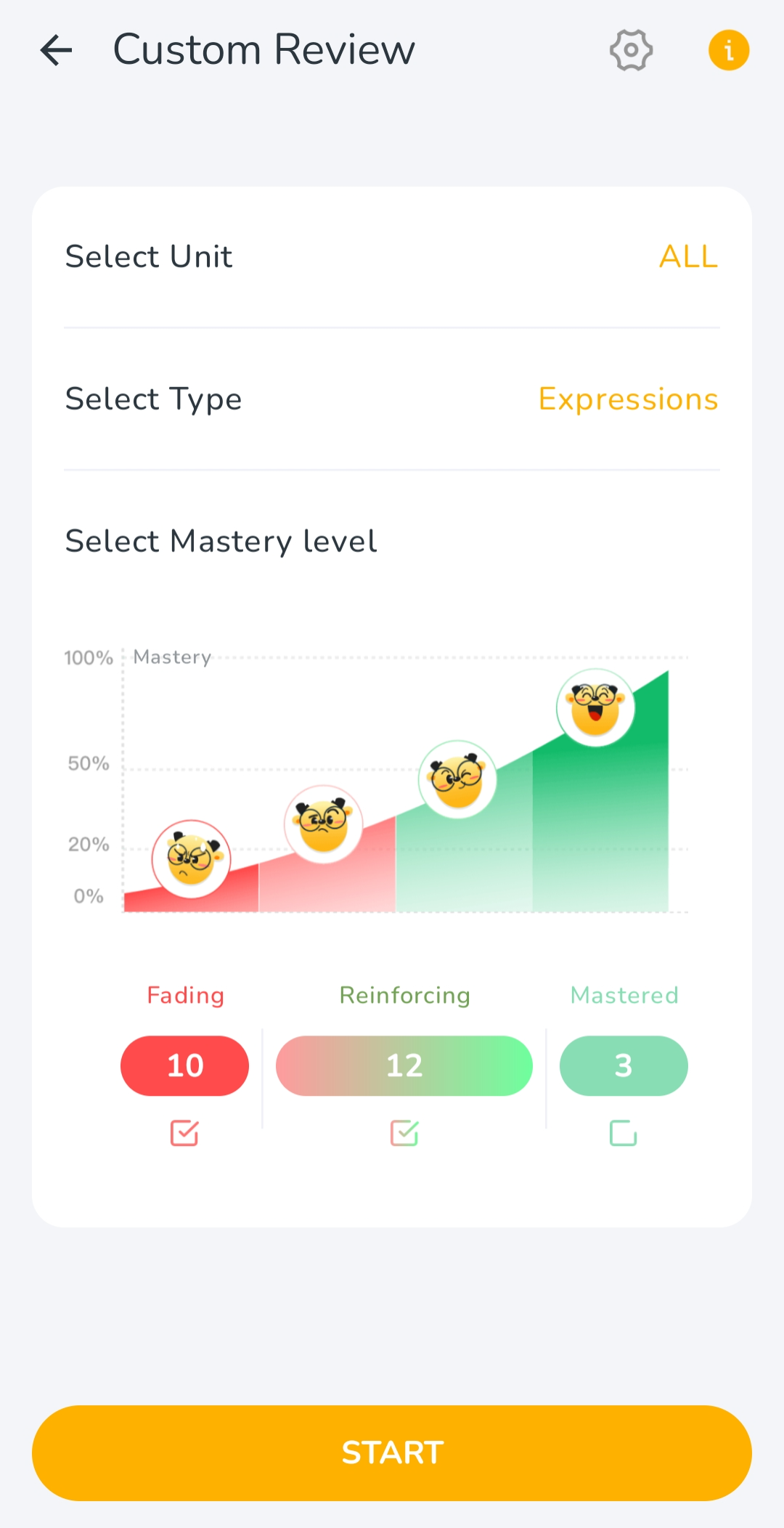
Custom Review allows you to practice selected content outside your automatically scheduled SRS Reviews.
On the Custom Review page, you can select:
- Units
- Item types
- Mastery levels
- A practice mode
The same five practice modes available in SRS are also available in Custom Review on the mobile app.
- Why is Custom Review unavailable?
Custom Review only includes items that have already been reviewed in SRS at least once.
This rule is applied separately to each item. Completing lessons in the main course does not immediately make all learned content available in Custom Review.
First review the relevant items through SRS Review. After that, those individual items can become available for Custom Review.
SRS Review vs. Custom Review
- SRS Review
SRS Review follows the review schedule generated for each item.
It directly affects:
- The item’s mastery level
- Its future review schedule
- When it will appear again in SRS
Regular SRS Reviews are intended to support long-term retention.
- Custom Review
Custom Review is intended for additional, targeted practice. You can choose particular units, item types, mastery levels, and practice modes.
Completing a Custom Review does not directly change the card’s SRS mastery level or scheduled review date.
However, the system may detect that your performance suggests certain items should be adjusted. When this happens, a prompt may appear after the XP results page.
You can choose whether to apply the suggested adjustments:
- If you accept them, the selected items will be adjusted.
- If you decline them, their current SRS arrangements will remain unchanged.
The prompt does not appear after every Custom Review.
Tap the information icon in the upper-right corner of the SRS or Custom Review page to view the in-app explanation of SRS vs. Custom Reviews.
- Which one should I use?
Use SRS Review regularly for scheduled review and long-term retention.
Use Custom Review when you want additional practice focused on specific:
- Units
- (Characters), Words or expressions
- Mastery levels
- Exercise types
The two review options work together: SRS manages your long-term schedule, while Custom Review gives you more control over what you want to practice.