You can update your username and profile picture in the LingoDeer app or on our website.
In the app
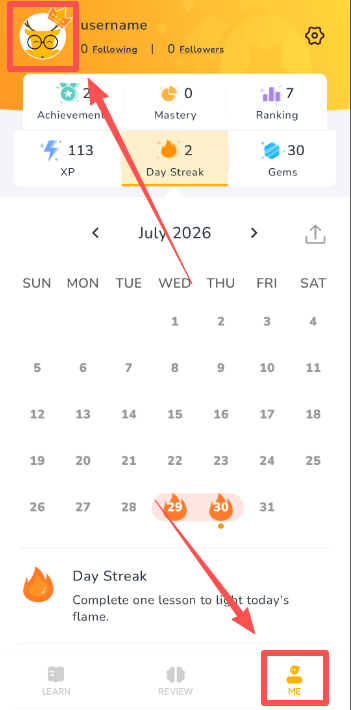
- Go to the ME tab.
- Tap your username or profile picture at the top of the page to open Account settings.
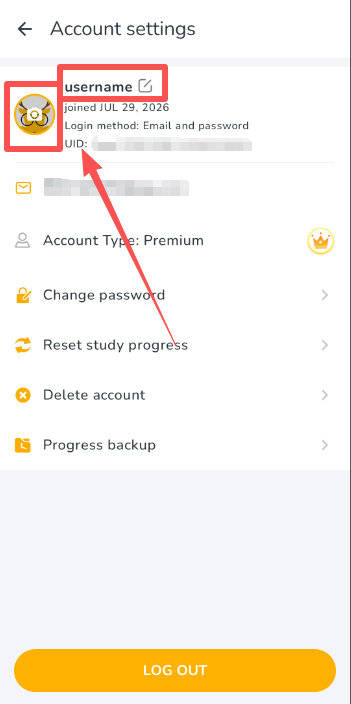
- On the Account settings page:
· To change your username, tap the edit icon next to your current username.
· To change your profile picture, tap your current profile picture and follow the prompts.
On the website
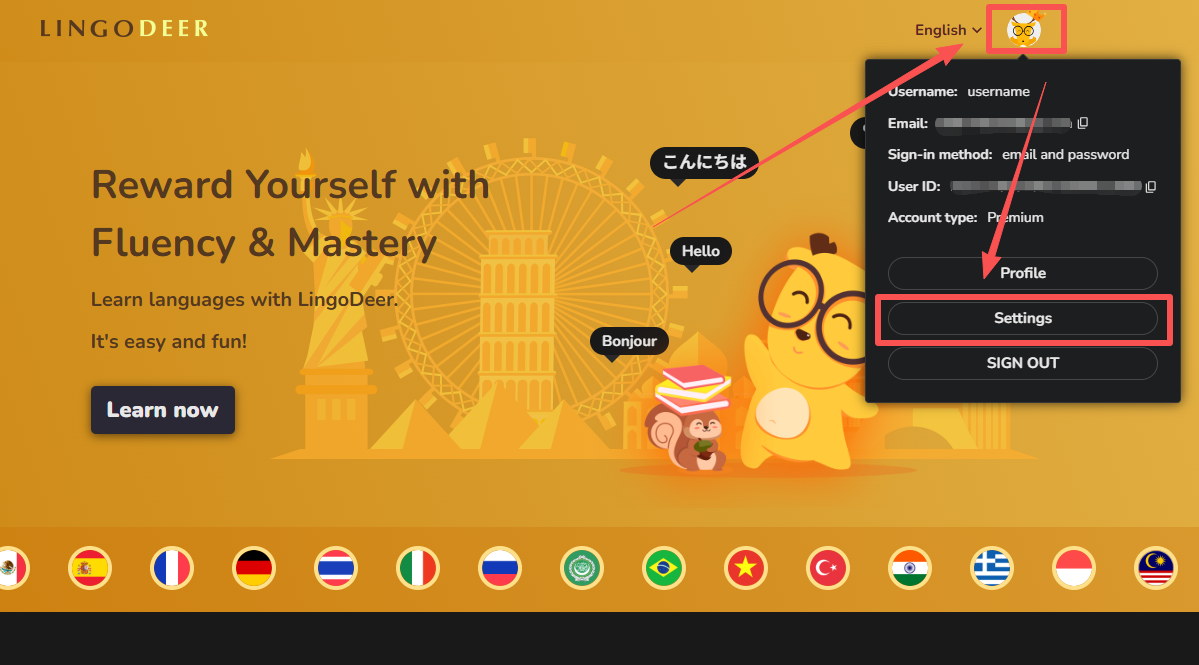
- Go to the LingoDeer homepage and log in to your account.
- Click your profile picture in the top-right corner.
- Select Settings from the drop-down menu.
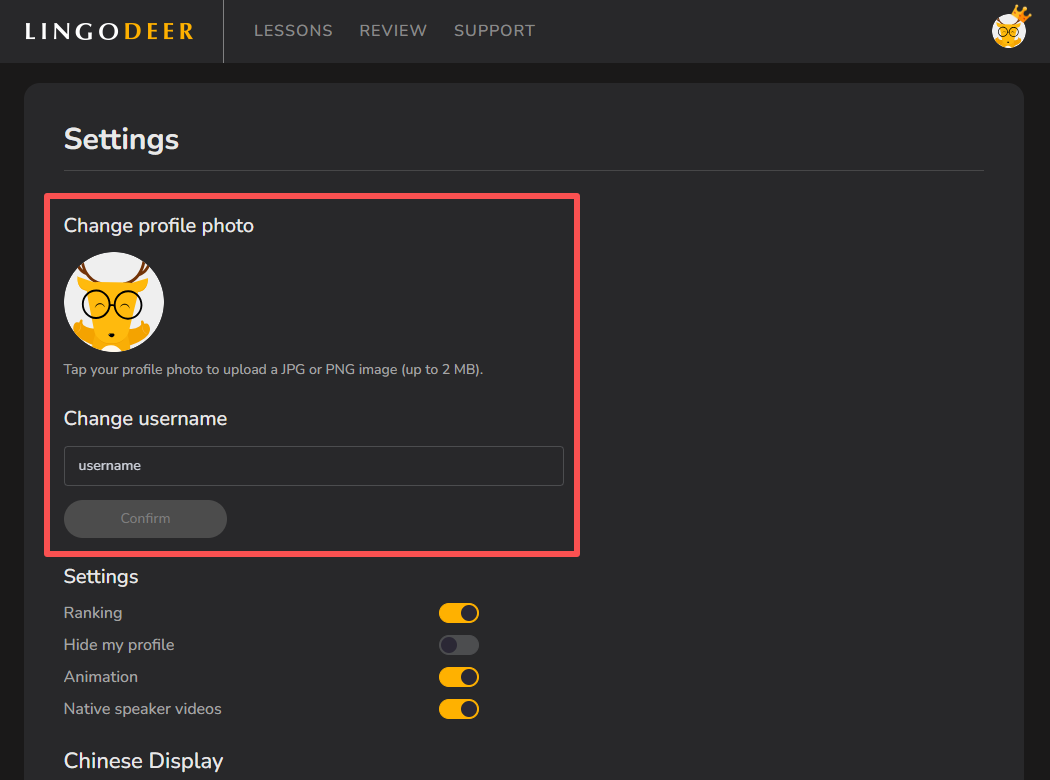
- On the Settings page:
· To change your profile picture, click your current profile picture and upload a JPG or PNG image of up to 2 MB.
· To change your username, enter a new username in the Change username field and click Confirm.
Please note that changing your username or profile picture will not change your login email, login method, or password.